AutoExplore Agent Scheduler
Share a single AutoExplore Agent between multiple applications by scheduling it to rotate between target environments, so you can reduce testing cost without losing coverage and make testing smaller applications more affordable.

Sampo Kivistö
Founder & CEO
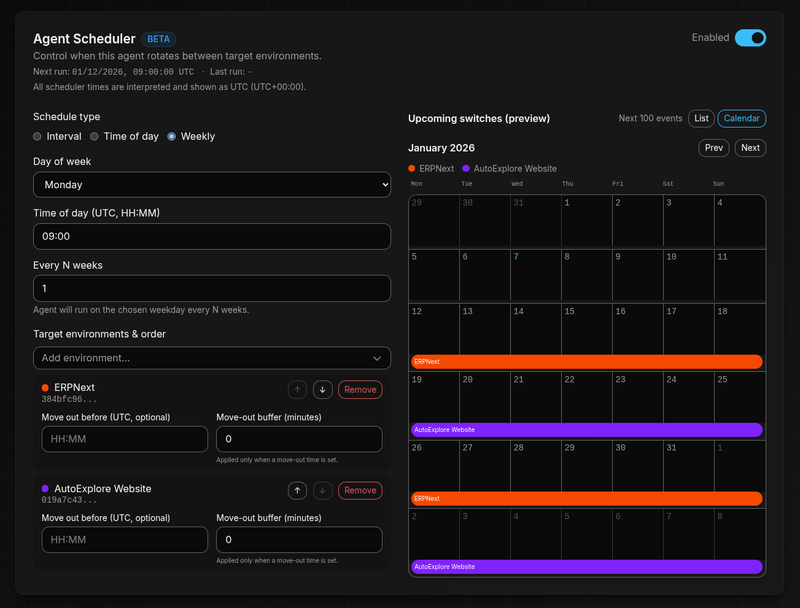
AutoExplore Agent Scheduler
Many teams don’t have just one product to test. They have a customer portal, an internal admin tool, a public website, and maybe a couple of smaller apps. If you provision a dedicated autonomous testing agent for each application, your testing cost scales with the number of apps.
At the same time, a single AutoExplore Agent can only test one application (Target Software Environment) at a time.
The AutoExplore Agent Scheduler solves this by letting you time‑share one agent across multiple applications: the agent rotates between your selected target environments on a schedule, so each application gets its own testing window.
What “sharing one agent” means in practice
Think of the scheduler as a rotation plan:
- You define an ordered list of Target Software Environments (each can point to a different application or environment).
- You pick when the agent should move to the next target.
- AutoExplore automatically switches the agent to the next target when the schedule triggers.
To enable rotation, the scheduler must have at least two different target environments configured.
Scheduling modes
The scheduler supports multiple ways to define the rotation cadence:
- Interval: rotate every N minutes (minimum 60 minutes between rotations)
- Time of day: rotate once per day at a specific time
- Weekly: rotate on a chosen weekday + time, optionally every N weeks
In the Control Panel, scheduler times are interpreted and shown as UTC-0.
How to set it up
In the AutoExplore Control Panel:
- Open your agent’s settings and go to Agent Scheduler (currently marked as Beta).
- Add the Target Software Environments you want the agent to rotate between and arrange them in the desired order.
- Pick the schedule type (Interval / Time of day / Weekly) and configure the time(s).
- Use the preview to sanity-check the upcoming rotation plan.
- Toggle the scheduler to Enabled to start automatic rotation.
Preview before you enable
Before you turn the scheduler on, you can preview upcoming rotations. This helps you answer questions like:
- “Which app will the agent be testing tomorrow at 09:00?”
- “How long is each testing window with my current settings?”
- “Does the rotation order match our priorities?”
The preview is especially useful when you’re coordinating testing windows across multiple teams that share the same agent.
Per‑target “move‑out” deadlines (optional)
Some environments have hard constraints. For example, you might want the agent to leave production before business hours, or leave staging before a deployment window.
For each target environment in the rotation, you can optionally set a move‑out before time (and an optional buffer in minutes). When configured, AutoExplore will not schedule the next rotation later than that deadline for that target.
Practical tips
- Prefer longer windows: rotating too often can reduce the time the agent spends exploring deeper flows.
- Use UTC intentionally: align the rotation plan with your teams’ working hours and release windows.
- Monitor upcoming transitions from the agent pool: you can see when the next rotation is scheduled and which target is next.
When to use the Agent Scheduler
The scheduler is a good fit when:
- You have multiple smaller applications that one agent can cover within a reasonable timeframe
- Some of your target environments aren’t running 24/7 and you want the scheduler to align testing windows to reduce cost
- You want to standardize testing windows (e.g., nightly, mornings, weekends)
If you need parallel testing (multiple apps at the same time), you’ll still want multiple agents. The scheduler focuses on sequential sharing. Related: Multiple Environments Multiple Agents.
At AutoExplore, we are committed to helping R&D teams implement autonomous testing as part of their development processes. Ready to see what issues AutoExplore finds from your application? Contact us for a demo to learn more.