Introducing AutoExplore Tasks
Give the AutoExplore agent a testing goal in plain English and choose how long it spends exploring that part of your application.

Sampo Kivistö
Founder & CEO
You can now use your release changelog as testing instructions. Paste it into an AutoExplore task and ask the agent to test what changed. For a narrower task, describe one change and let the agent explore it.
Maple Row Storefront 2.8.0
- Customers can now change the shipping address on an open order.
- Changing the postal code now updates the shipping charge and estimated delivery date.
- Fixed a checkout bug that kept the old apartment number when a customer switched to a saved address without apartment number.
Copy the release notes to AutoExplore tasks and set a time limit. The agent works out which steps to take.
How the agent explores
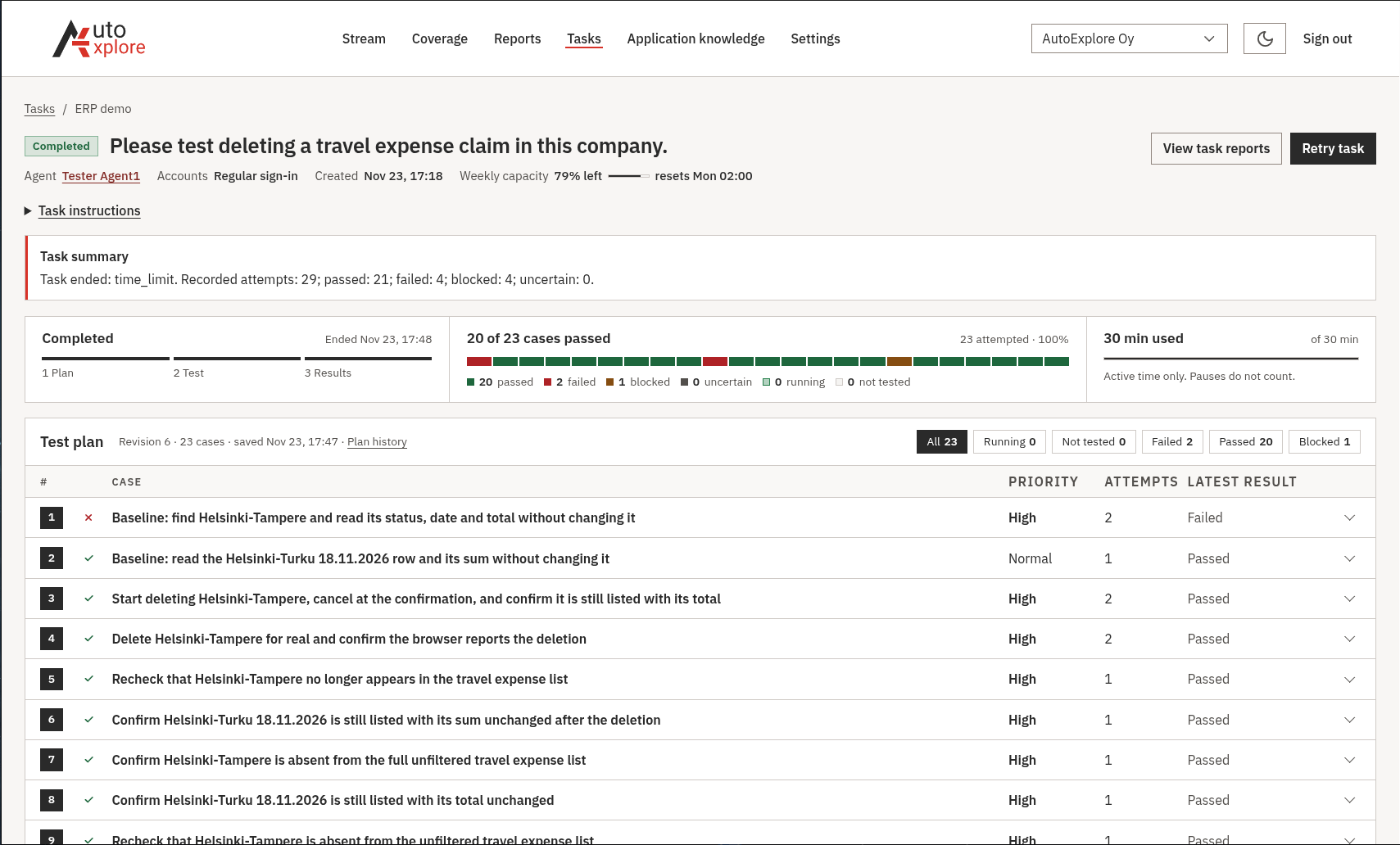
The agent first signs in to your test environment. Its planner uses your instructions and what the agent has already learned about the application to draw up a few test plans. The agent then tries those flows in the application, looking for overlooked edge cases and steps where a user could get stuck.
After those first plans, the agent keeps planning and testing for as long as the task has time left. Two runs of the same task can take different paths and uncover different issues. In the shipping example, one run might switch to another saved address. A second might try a postal code outside the delivery area.
Reviewing the findings
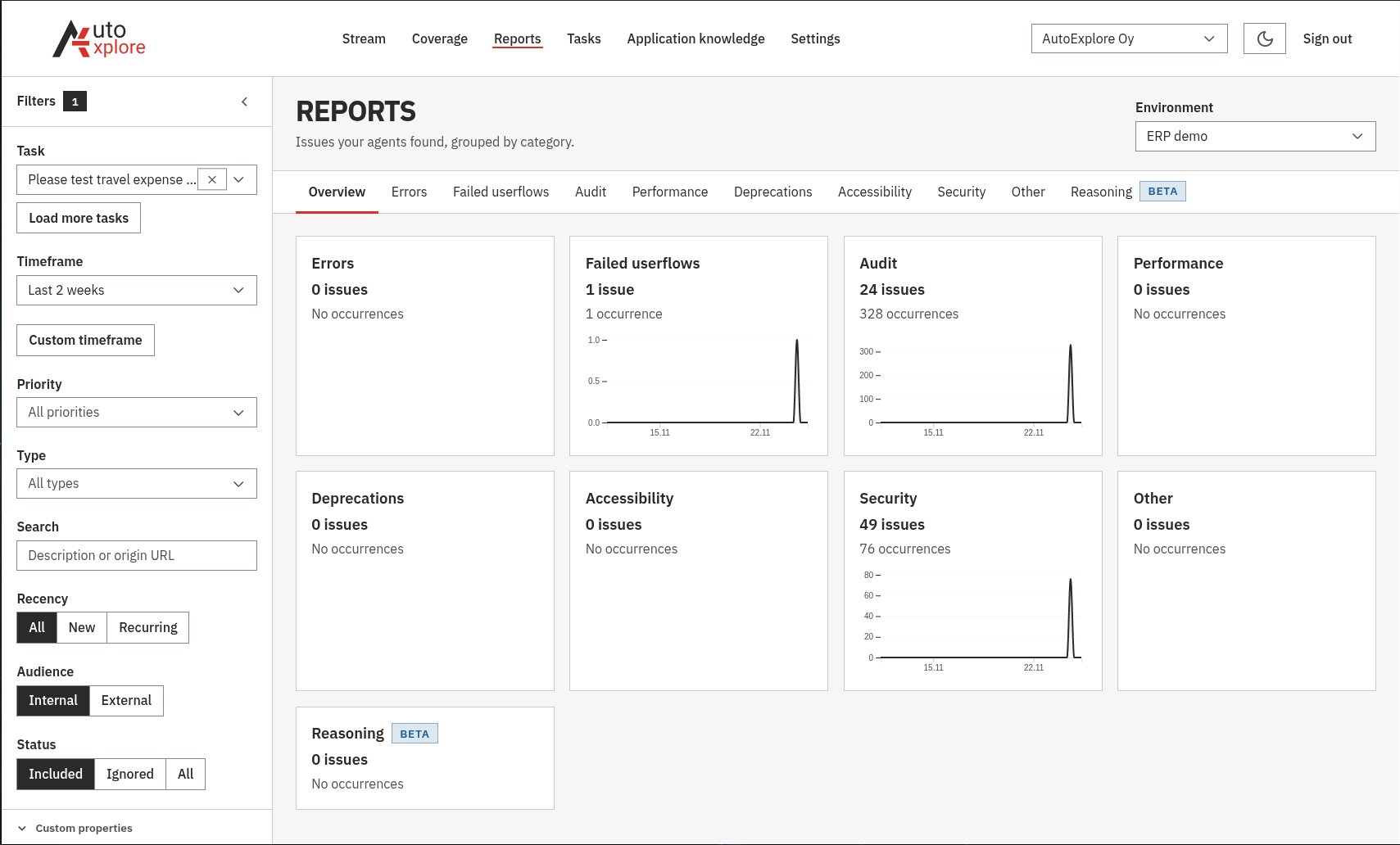
On the reporting page, select your task in the task filter to see what the agent found. Open a finding to follow the steps that led to it in the issue timeline.